
Using Tuno · Week 4
Tuno in your browser
A quiet warning when a page looks wrong, and help understanding whatever is on screen.
Tuno has a small helper for Chrome and Edge. Once it's added, it does two useful things: it watches for scams while you browse, and it lets Tuno read the page you're looking at so you can ask about it.
Checking it's connected
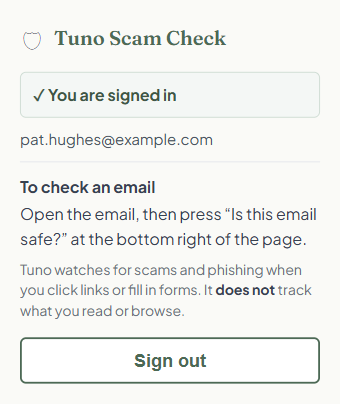
- 1Open Chrome or Edge and click the Tuno icon in the row of icons near the top right.
- 2If it says You are signed in, you're done. Nothing else to do.
- 3If it asks for your email address instead, make sure Tuno is running on your PC. Then click Sign in, then Connect with the app.
- 4You can also check from Tuno's own Settings, which has a Browser Helper section showing whether the two have found each other.
No Tuno account? The panel shows your free checks for this month. It also has a box to add your email address to get more. Website warnings work either way.
What the warnings look like
You don't have to do anything for this part. If you click a link that looks like a scam, or start filling in a form on a page Tuno doesn't trust, a plain warning appears across the page explaining what worried it. Not a code, not a lecture. Just what it noticed and why.
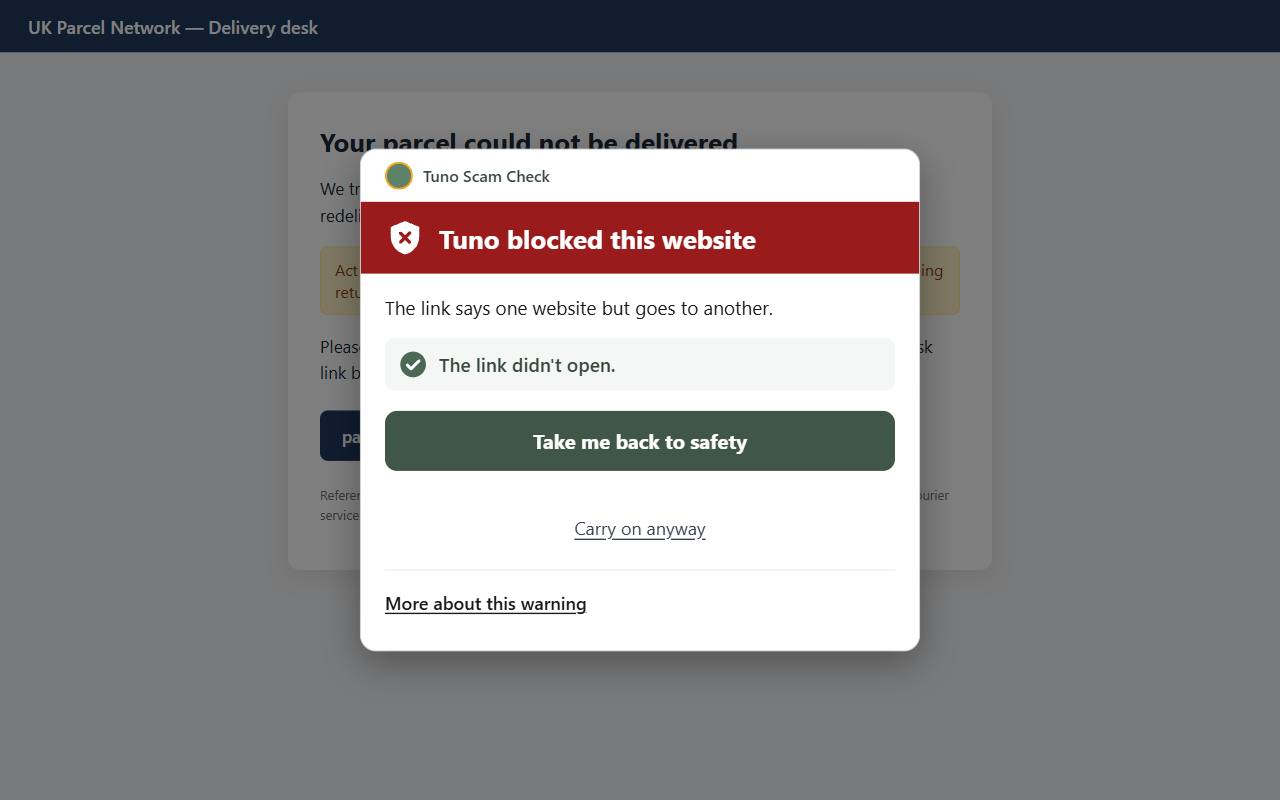
You can always carry on if you know the site is fine. Tuno is not there to lock you out of your own computer. It would rather raise one unnecessary question than let something past.
Take care
If a warning appears and you're unsure, the safest thing is to close the tab and go to the company's website yourself, by typing the address you know. Never use the link that worried Tuno.
Asking about the page you're on
This is the part people forget they have. When you're looking at a web page, just ask Tuno about it. With the browser helper installed, Tuno can read the page you're on and answer questions about it. So you can say things like:
- What is this form actually asking me for?
- Is that the total price, or does postage get added later?
- This says my session has expired. What do they mean?
- Where on this page do I click to cancel?
Good to know
Tuno only reads the page when you ask. It is not following you around the web keeping a record of where you go.
Tip
Worth trying this week: open a web page you find confusing and ask Tuno what it's really saying.
Read next
Still have a question about Tuno?
Email us about Tuno and we'll help. There's no wrong question, and you can take your time. For help with your own computer, printer or emails, just ask Tuno.
Already signed in? You can also chat with support from My Tuno Help.