
Using Tuno · Week 5
Checking whether an email is safe
One click and Tuno tells you plainly: safe, be careful, or don't trust it.
Email is where most of the convincing tricks arrive. A message that looks like your bank, a parcel you weren't expecting, an invoice for something you never bought. They're designed to be believed, and modern ones are good.
So Tuno will check any email for you, and tell you what it thinks in ordinary language.
If you read email in a web browser
This covers Gmail, Outlook.com and Yahoo Mail. With Tuno's browser helper installed, a small button appears in the bottom corner of the page reading "Is this email safe?".
- 1Open the email you're unsure about.
- 2Click "Is this email safe?" in the bottom corner.
- 3Wait a moment while Tuno looks at it.
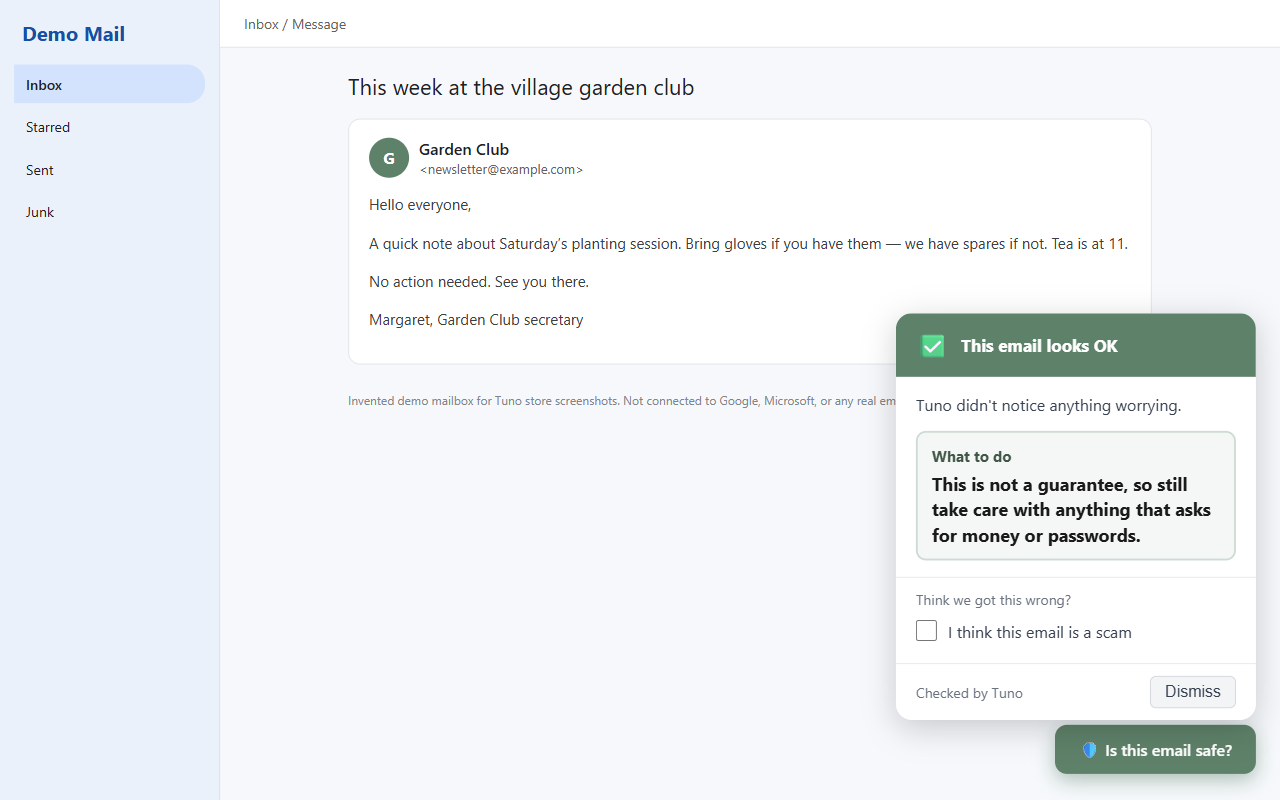
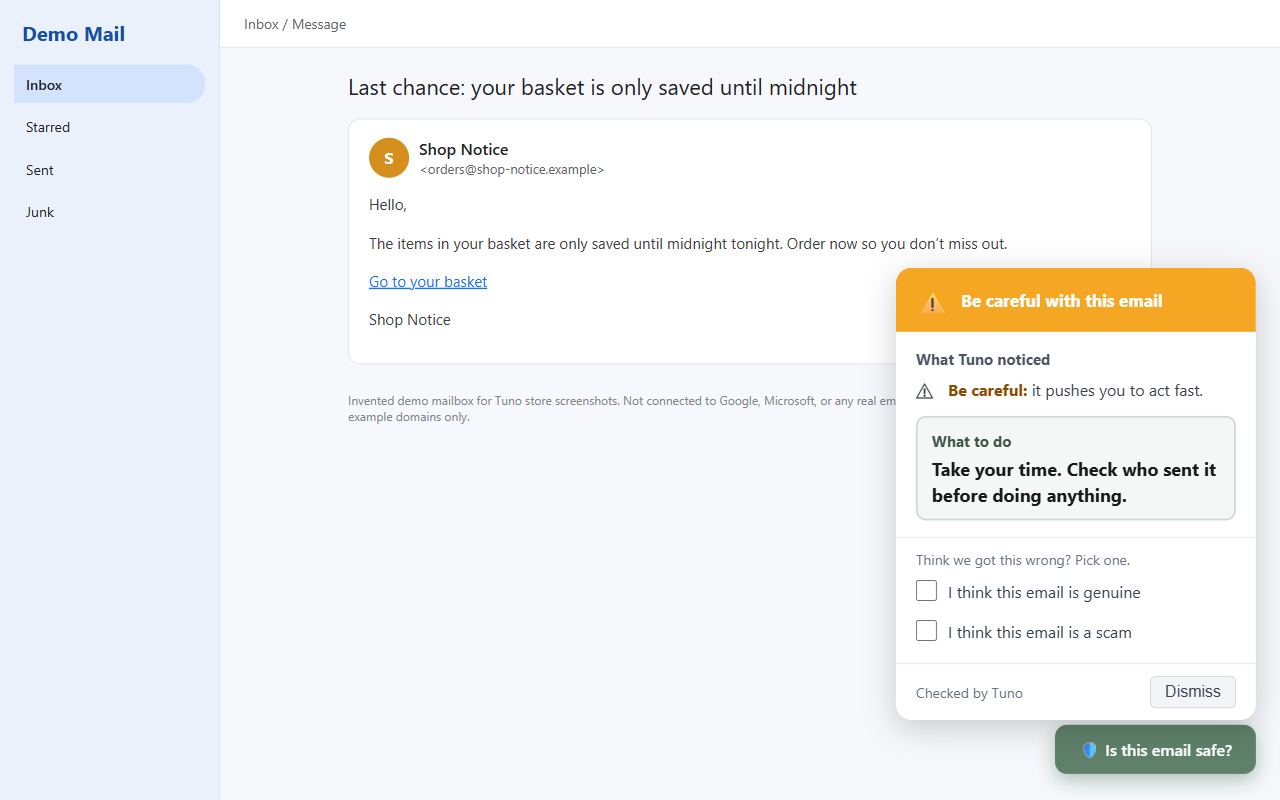
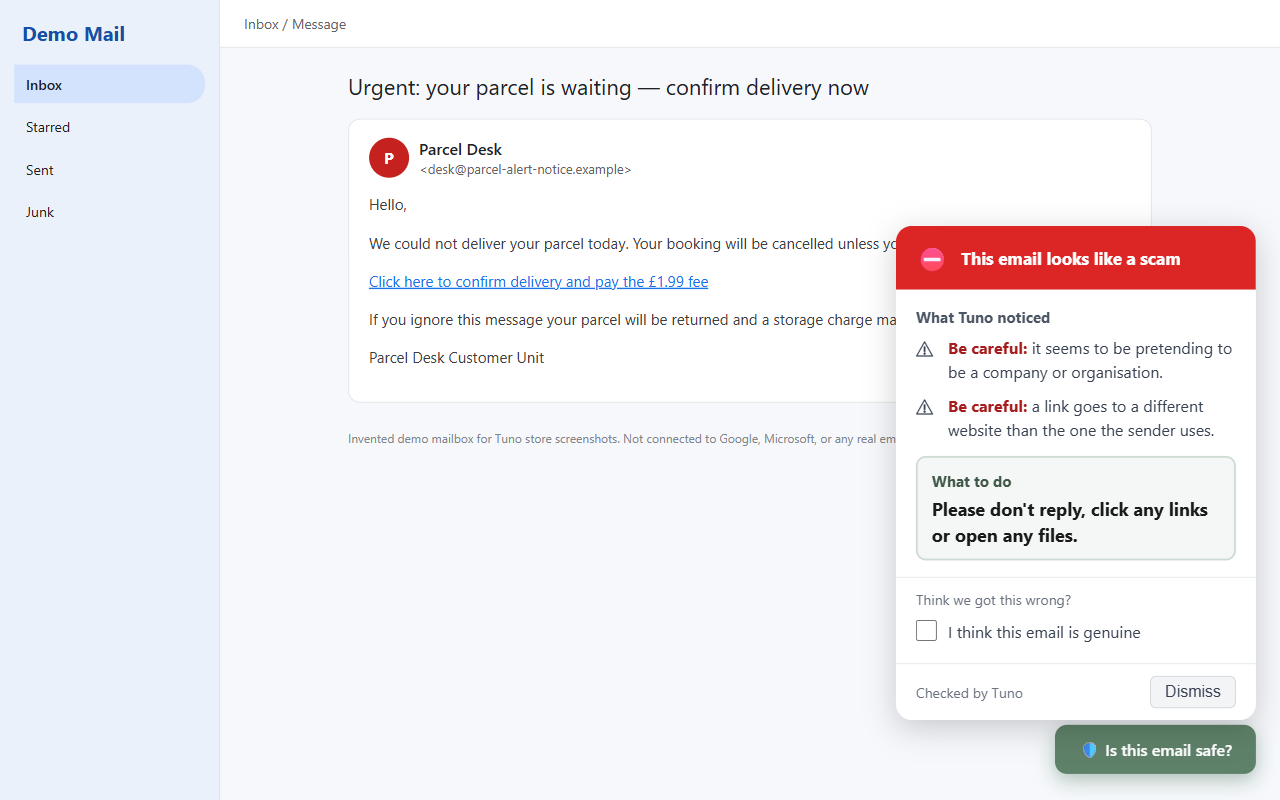
- 4Read the answer. Green means it looks fine, amber means take care, red means don't trust it.
What Tuno actually checks
Not just the name at the top, which is the easiest thing in an email to fake. Tuno looks at the address the message genuinely came from, where each link really goes rather than where it claims to go, whether the reply would go somewhere different, what any attachments are, and whether the wording uses the pressure tactics that scams rely on.
Two things Tuno does without being asked
If you go to reply to or forward a message that looks urgent and suspicious, Tuno checks it there and then and warns you before it goes anywhere. And if you start typing what look like card or account numbers into an email, it will stop and ask whether you're sure, because that is almost never something a genuine company asks for by email.
Take care
No real bank, no real government department and no real delivery company will ever ask for your PIN, your full card number or your password by email. Not once. Not ever.
Take care
A green result is a good sign, but it is not a promise. No check is perfect, so still be careful with anything that asks for money or passwords.
Take care
Sometimes Tuno can't finish checking an email straight away. When that happens, it tells you. It does not guess. Wait a minute and try again. Until then, don't click the email's links or open any files attached to it.
Good to know
There is no such thing as checking too often, and no such thing as a silly thing to check. Tuno would far rather look at ten perfectly ordinary emails than miss the one that mattered.
Tip
Worth trying this week: check an email you already know is genuine. Seeing what a green result looks like now means you'll recognise a red one instantly later.
Read next
Still have a question about Tuno?
Email us about Tuno and we'll help. There's no wrong question, and you can take your time. For help with your own computer, printer or emails, just ask Tuno.
Already signed in? You can also chat with support from My Tuno Help.