
Getting started · Lesson 5
Adding the browser helper
A small add-on for Chrome or Edge that warns you about scam websites and lets Tuno read the page you're on.
Tuno's helper for your web browser is called Tuno Scam Check in your browser's web store. It's free to add, and it works with Tuno too. Once it's added, it warns you before you open a website known for scams. If you use the Tuno app on a Windows PC or laptop, it also lets Tuno read the page you're looking at, but only when you ask about it. The Tuno app doesn't run on iPads, Macs or phones.
Tip
The easiest way: say or type "Please help me set up the browser tool" to Tuno. It will open the right page and talk you through each step.
Adding it in Google Chrome
- 1Open Chrome and go to the Tuno Scam Check page. The setup email from Tuno has a green Add Tuno Scam Check button that takes you straight there.
- 2Click the blue Add to Chrome button.
- 3A small box asks whether to add Tuno Scam Check. Click Add extension.
- 4Click the jigsaw-piece icon near the top right of Chrome, then click Tuno Scam Check.
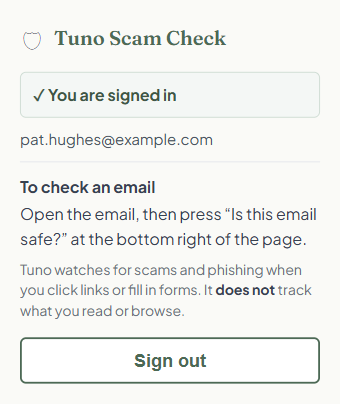
- 5If it says You are signed in, you're all set. If it asks for your email address instead, make sure Tuno is running on your PC. Then click Sign in, then Connect with the app.
Adding it in Microsoft Edge
- 1Open Edge and go to the same Tuno Scam Check page.
- 2A bar near the top mentions extensions from other stores. Click Allow extensions from other stores, then Allow.
- 3Click Add to Chrome (in Edge it may say Get). It still adds the helper to Edge.
- 4Click Add extension in the box that appears.
- 5Click the jigsaw-piece icon near the top right of Edge, then Tuno Scam Check. Check it says You are signed in.
Take care
If Tuno shows a box asking for the Web Safety permission, click Yes, turn it on. The helper can't connect without it.
Only use the link from Tuno's email or from Tuno itself. Searching the Chrome Web Store for Tuno won't find it.
Do you use the Outlook program for email?
If you read email in the Outlook program rather than a web browser, there's one more optional step: adding the safety check to Outlook. Our guide Adding the safety check to Outlook explains how. If you read email in a web browser, the helper you've just added already covers you.
Next: Lesson 6Opening Tuno each dayRead next
Still have a question about Tuno?
Email us about Tuno and we'll help. There's no wrong question, and you can take your time. For help with your own computer, printer or emails, just ask Tuno.
Already signed in? You can also chat with support from My Tuno Help.